
FLUX 3 text to video
Set the scene in words: a subject, one clear action and a camera move. Add the atmosphere or a short spoken line when sound matters.
Describe a scene or bring your first frame. Create 5–20 seconds of video with sound, at 720p or 1080p.
Requires a paid purchase and enough credits. Your exact credit cost appears before you generate.
See the model in motion
Watch a FLUX 3 Video demonstration. Your results will depend on your prompt, images and settings.
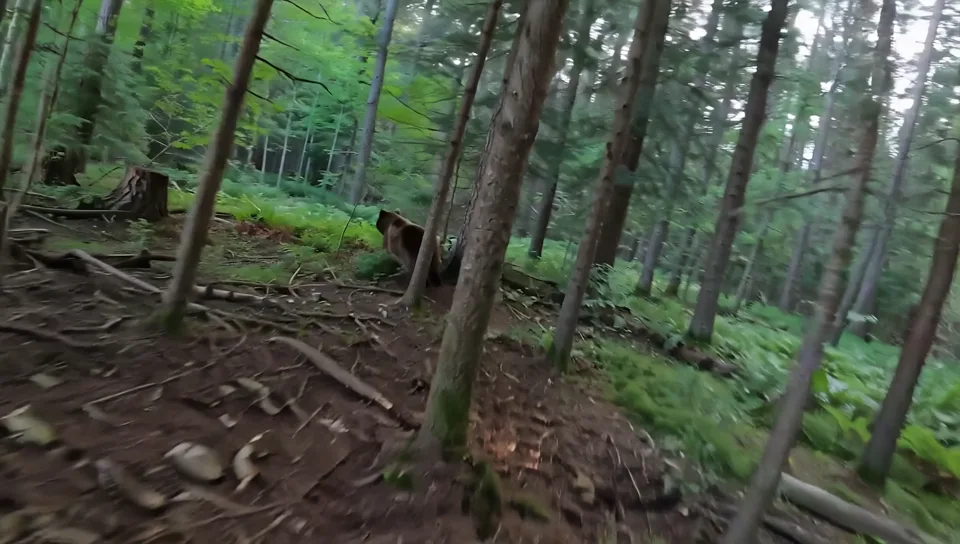
FLUX 3 Video is a Black Forest Labs model for generating moving images and sound together. Start from a written scene, animate a still, or guide a transition with two frames.
Set the scene in words: a subject, one clear action and a camera move. Add the atmosphere or a short spoken line when sound matters.
Upload a product photo, illustration or character image as the first frame. Describe what should move and how the camera should follow it.
Describe dialogue, room tone or sound effects in your prompt. Keep generated audio on, or switch it off if you will add your own soundtrack.
Choose Text or Image. Write a prompt; for Image, add a first frame and, if needed, a last frame.
Choose 5–20 seconds, 720p or 1080p, a format and sound on or off. Review the credit estimate before generating.
Sign in with purchased model access and generate. Review the finished clip, download it, or find it again in My creations.
In Image mode, your first image anchors the opening. Add a last frame when the shot needs to arrive at a specific composition. Describe the action between them and use images with matching proportions for a more predictable result.
This workspace supports two frame images. Multi-image storyboards, video continuation and draft enhancement are not available here.
Text and image inputs use the same rate. Longer clips and 1080p output use more credits; audio is included. These estimates use the same pricing policy as the generator.
| Resolution | 5 seconds | 10 seconds | 20 seconds |
|---|---|---|---|
| 720p | 128 credits | 255 credits | 510 credits |
| 1080p | 218 credits | 435 credits | 870 credits |
A paid credit pack or subscription unlocks FLUX 3. You also need enough credits for the selected settings. Failed generations return their credits automatically.
Compare plans and credit packsKeep the action easy to follow. Describe the subject, movement, camera, light and sound. These are original starting prompts for you to adapt, not claims of tested results.
A bicycle mechanic closes a small workshop at dusk. Medium shot, slowly moving closer as she wipes her hands, looks toward the open door and says, “Ready for tomorrow.” Warm workbench light, cool evening outside. Sound: a bicycle bell, quiet street ambience and her natural voice. One continuous shot.
Use the first frame as the opening composition. The desk lamp switches on, casting a warm pool of light across the notebook. Slowly move the camera closer while keeping the lamp shape and materials consistent. Sound: a soft switch click and quiet room tone. No added text.
A tiny clay fox carries a blue teacup across a mossy log, pauses to let a beetle pass, then continues. Handmade stop-motion style, soft morning light and a low tracking camera. Sound: small footsteps, birds and a gentle cup rattle. Keep the story in one setting.
FLUX 3 requires a paid purchase and sufficient credits here. Free account credits alone do not unlock it. Eligible free credits can be used with MiniMax H3 Fast at 480p in the text-to-video workspace.
Yes. Generated audio is on by default. Describe dialogue, ambient sound or effects in the prompt, or turn audio off before generating. This page does not accept uploaded audio tracks.
Yes. Choose Image, upload a first frame and optionally add a last frame. Both must be JPEG, PNG or WebP and no larger than 20 MB each. A prompt is required to describe the motion between them.
Choose any whole number from 5 to 20 seconds. The same range is available for text and image inputs at 720p or 1080p. The tool shows the credit cost for your chosen length.
This workspace offers 720p and 1080p output. A separate upscale step would be needed for a higher-resolution deliverable; native 4K generation is not offered on this page.
This page runs full-quality text-to-video and image-to-video generation. Draft previews, draft enhancement, video continuation and more than two keyframes are not exposed in this workspace.
Yes. Black Forest Labs and selected providers publish FLUX 3 video APIs. This workspace lets you use the model through your account without entering an API key. The model sources below link to the public documentation.
Credits for a failed generation are returned automatically. If a video has finished generating, a later delivery or watermark issue does not count as a failed generation; the system works to deliver the completed clip.
Start with a short scene or your first frame. Set the format, check the credits and generate.