Radio Operator Evacuation Bridge
 Output
15s · 16:9
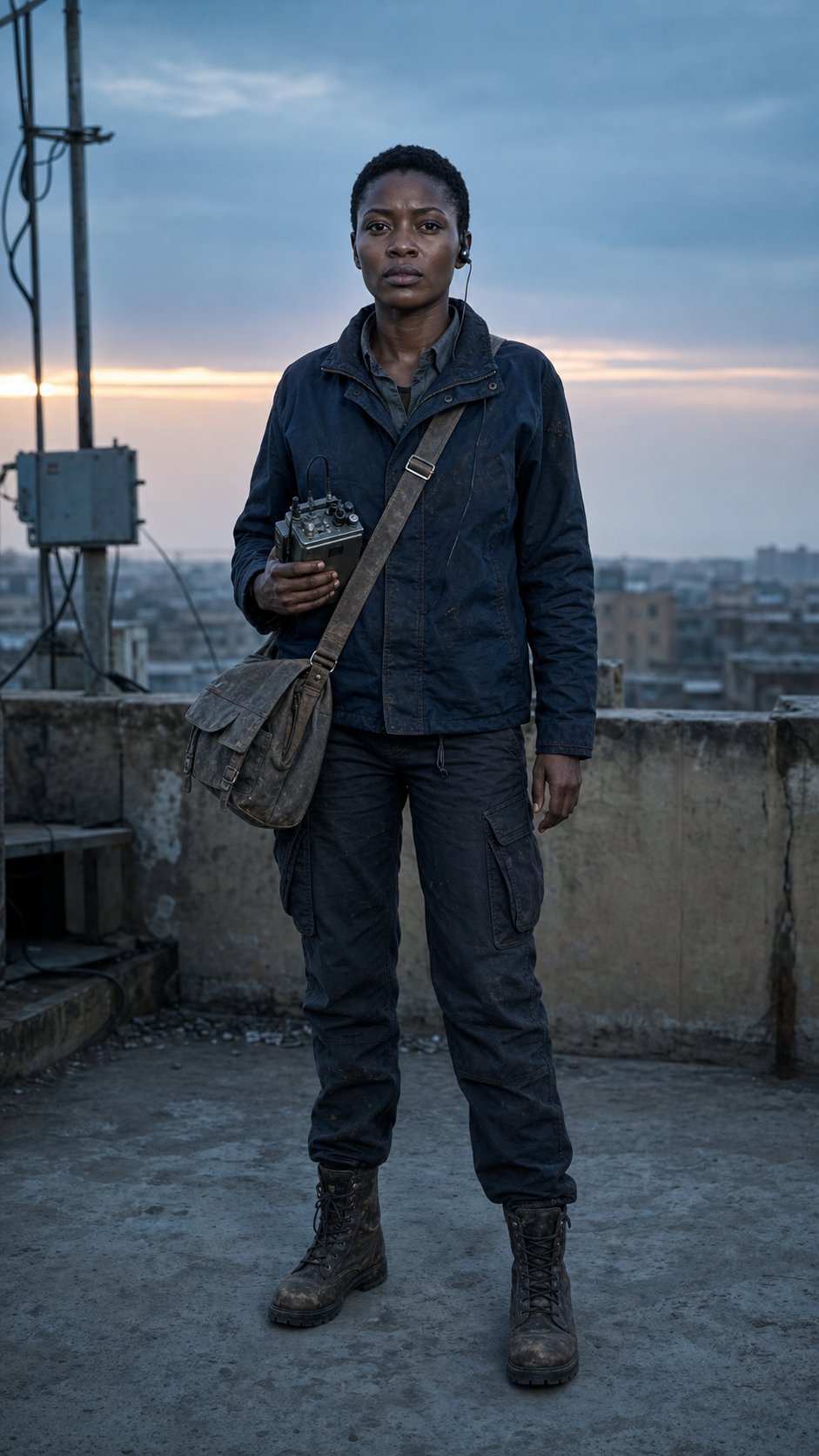
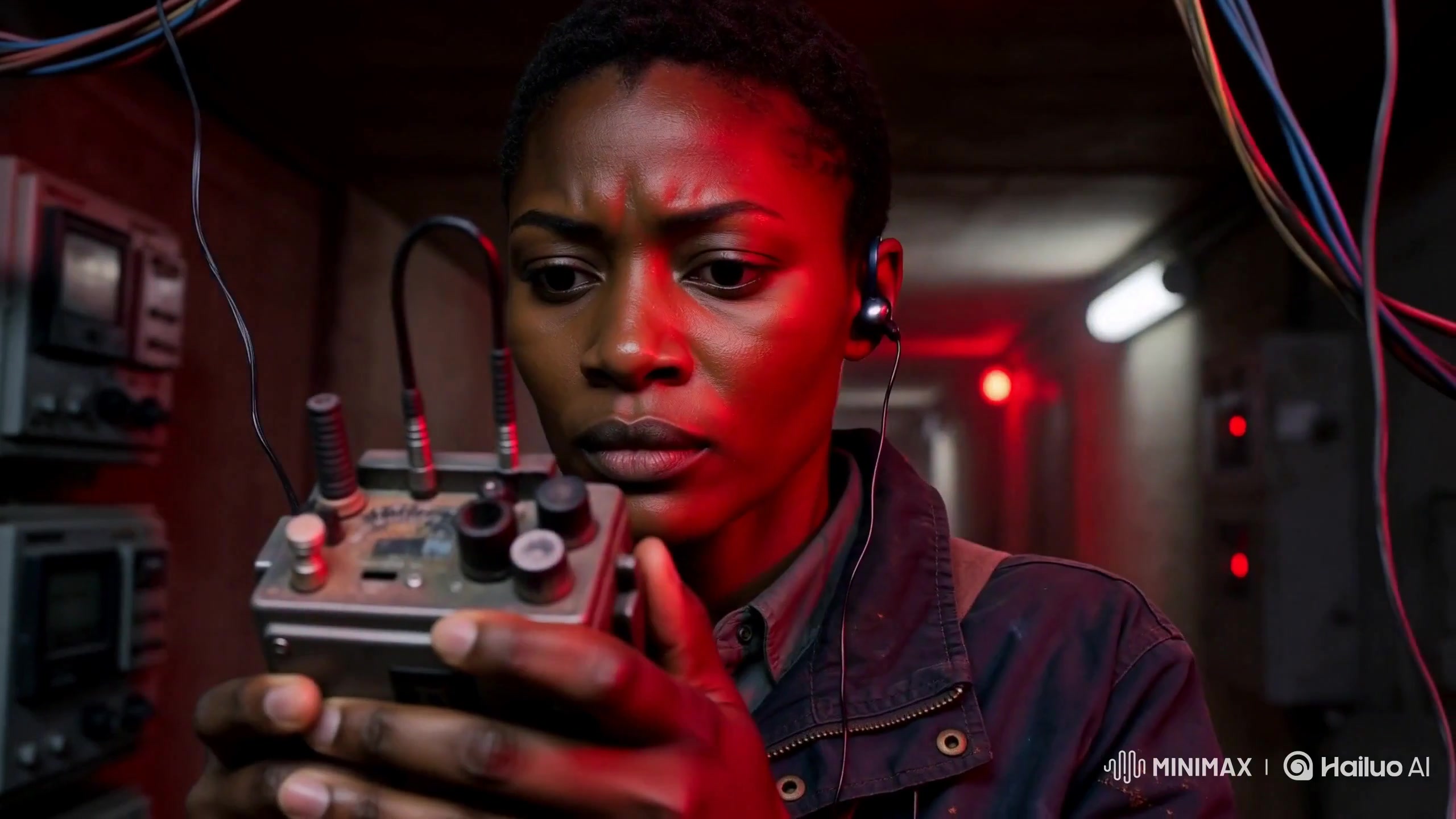
FORMAT 15 seconds | 16:9 | photoreal live-action war thriller Fictional Sahelian city at blue-hour dawn. Urgent, human, suspenseful, non-graphic. REFERENCE CONTROL Use the supplied first frame to lock AMINA’s identity and wardrobe. Preserve face, close-cropped hair, deep-brown skin, navy field jacket, silver earpiece, canvas satchel, analogue radio, boots and determined expression. Build the surrounding environment from this description, without requiring a second image: A concrete bridge, dry riverbed, dense low-rise city, rooftop antennae, dusty atmosphere, cool-blue shadows and restrained amber dawn. No real countries, flags, organizations or landmarks. STORY Amina is the last radio operator keeping an evacuation bridge open. Communications fail during a distant attack. She must activate the backup relay and transmit clearance before automatic controls close the bridge. 00–02s — CHANNEL OFFLINE Begin with Amina on the rooftop in the supplied first frame, then cut to a close-up of her radio. Amina grips the analogue radio as red emergency lights pulse. Dust trembles, cables quiver, broken static fills the room. Automated voice: “Emergency channel offline.” She looks up and immediately moves. 02–04s — BRIDGE CLOSING Wide aerial-oblique rooftop view. Civilians cross the bridge through windblown dust. Checkpoint signal flickers green → red as shutdown begins. A distant shockwave moves through city haze. No visible casualties. 04–06.5s — RUN Low handheld tracking behind Amina running through a damaged service corridor. Emergency lights flash, dust falls, cables briefly spark, boots hit wet concrete. She pushes through a heavy metal door into blowing dust. 06.5–09s — FLASHBACK Two minutes earlier. Medium side-profile on rooftop. Amina sees the unstable bridge signal, manually rotates the antenna and connects her radio to backup power. Slow camera push. Wind moves her satchel strap as first amber sunlight reaches her jacket. 09–12.5s — TRANSMISSION Rapid cross-cut montage: frequency dial locks → antenna aligns → bridge cables vibrate → red signal flashes → Amina speaks into radio: “Channel Seven, keep the bridge open.” Overhead shot: civilians continue crossing. Sharp hard cuts, brief black frames, natural motion blur. 12.5–15s — SIGNAL RESTORED Sound suddenly drops. Amina listens on the rooftop. Clear radio tone. Checkpoint signal changes red → steady green. Evacuation continues. Amina exhales and watches the bridge as dawn reaches the city. Slow push toward her face. Cut to black. CAMERA Large-format live-action realism. Precise nonlinear cross-cutting. Handheld tracking, aerial-oblique coverage, restrained push-ins and close details. Natural motion blur, fine film grain, subtle gate weave. No impossible camera movement. ENVIRONMENT + PHYSICS Cool-blue shadows against muted amber sunrise. Deep blacks, dusty atmosphere, weathered concrete. Wind realistically affects dust, clothing, cables and antenna equipment. All movement and interactions remain physically believable. AUDIO Stereo radio static, electrical hum, wind, boots, antenna creaks, distant low artillery and helicopter rotors. Restrained suspenseful sub-bass builds through the montage. VISUAL Photoreal cinematic war-thriller footage. Immense scale contrasted with one determined operator. Grounded, tense and human. No subtitles, text, logos, watermarks, political messaging, flags or military insignia. CONTINUITY Same Amina identity, wardrobe, radio and satchel throughout. Same bridge, city, atmosphere and dawn lighting. Maintain geographic and temporal continuity across all shots.View promptAdapted prompt
FORMAT 15 seconds | 16:9 | photoreal live-action war thriller Fictional Sahelian city at blue-hour dawn. Urgent, human, suspenseful, non-graphic. REFERENCE CONTROL Use the supplied first frame to lock AMINA’s identity and wardrobe. Preserve face, close-cropped hair, deep-brown skin, navy field jacket, silver earpiece, canvas satchel, analogue radio, boots and determined expression. Build the surrounding environment from this description, without requiring a second image: A concrete bridge, dry riverbed, dense low-rise city, rooftop antennae, dusty atmosphere, cool-blue shadows and restrained amber dawn. No real countries, flags, organizations or landmarks. STORY Amina is the last radio operator keeping an evacuation bridge open. Communications fail during a distant attack. She must activate the backup relay and transmit clearance before automatic controls close the bridge. 00–02s — CHANNEL OFFLINE Begin with Amina on the rooftop in the supplied first frame, then cut to a close-up of her radio. Amina grips the analogue radio as red emergency lights pulse. Dust trembles, cables quiver, broken static fills the room. Automated voice: “Emergency channel offline.” She looks up and immediately moves. 02–04s — BRIDGE CLOSING Wide aerial-oblique rooftop view. Civilians cross the bridge through windblown dust. Checkpoint signal flickers green → red as shutdown begins. A distant shockwave moves through city haze. No visible casualties. 04–06.5s — RUN Low handheld tracking behind Amina running through a damaged service corridor. Emergency lights flash, dust falls, cables briefly spark, boots hit wet concrete. She pushes through a heavy metal door into blowing dust. 06.5–09s — FLASHBACK Two minutes earlier. Medium side-profile on rooftop. Amina sees the unstable bridge signal, manually rotates the antenna and connects her radio to backup power. Slow camera push. Wind moves her satchel strap as first amber sunlight reaches her jacket. 09–12.5s — TRANSMISSION Rapid cross-cut montage: frequency dial locks → antenna aligns → bridge cables vibrate → red signal flashes → Amina speaks into radio: “Channel Seven, keep the bridge open.” Overhead shot: civilians continue crossing. Sharp hard cuts, brief black frames, natural motion blur. 12.5–15s — SIGNAL RESTORED Sound suddenly drops. Amina listens on the rooftop. Clear radio tone. Checkpoint signal changes red → steady green. Evacuation continues. Amina exhales and watches the bridge as dawn reaches the city. Slow push toward her face. Cut to black. CAMERA Large-format live-action realism. Precise nonlinear cross-cutting. Handheld tracking, aerial-oblique coverage, restrained push-ins and close details. Natural motion blur, fine film grain, subtle gate weave. No impossible camera movement. ENVIRONMENT + PHYSICS Cool-blue shadows against muted amber sunrise. Deep blacks, dusty atmosphere, weathered concrete. Wind realistically affects dust, clothing, cables and antenna equipment. All movement and interactions remain physically believable. AUDIO Stereo radio static, electrical hum, wind, boots, antenna creaks, distant low artillery and helicopter rotors. Restrained suspenseful sub-bass builds through the montage. VISUAL Photoreal cinematic war-thriller footage. Immense scale contrasted with one determined operator. Grounded, tense and human. No subtitles, text, logos, watermarks, political messaging, flags or military insignia. CONTINUITY Same Amina identity, wardrobe, radio and satchel throughout. Same bridge, city, atmosphere and dawn lighting. Maintain geographic and temporal continuity across all shots.