Gemini Omni Video Generator

Describe a scene, animate an image, or guide a new video with visual references. Create with Gemini Omni Flash Preview in one workspace.

720p · Landscape or portrait · VIP access required

Gemini Omni Flash Preview
132

See it in motion

Gemini Omni video examples

Explore motion, visual changes and camera direction in these Gemini Omni demonstrations. Your results will vary with your prompt, references and settings.

A marble in motion

Motion

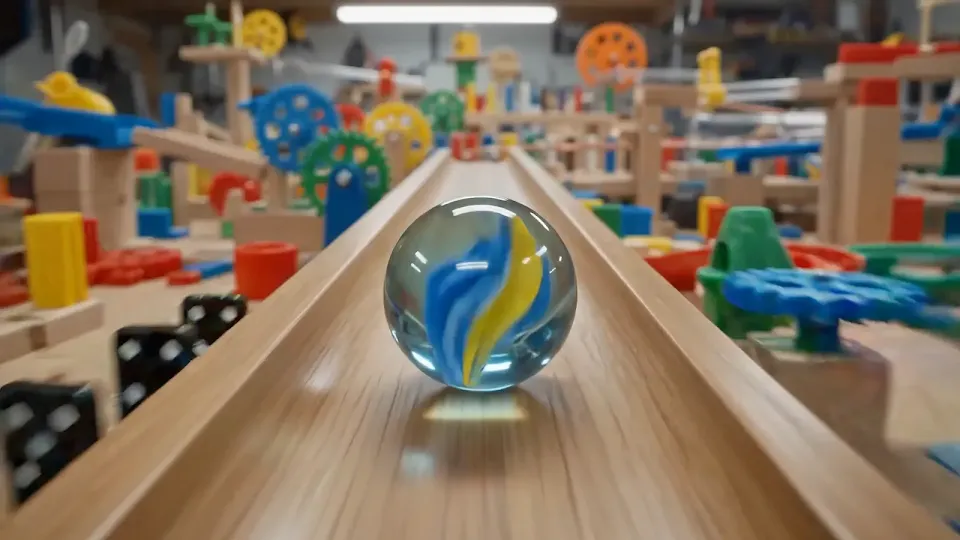
A marble in motion

A rolling marble gives a simple scene a clear path and a visible sequence of actions.

A new look for the same scene

Video editing

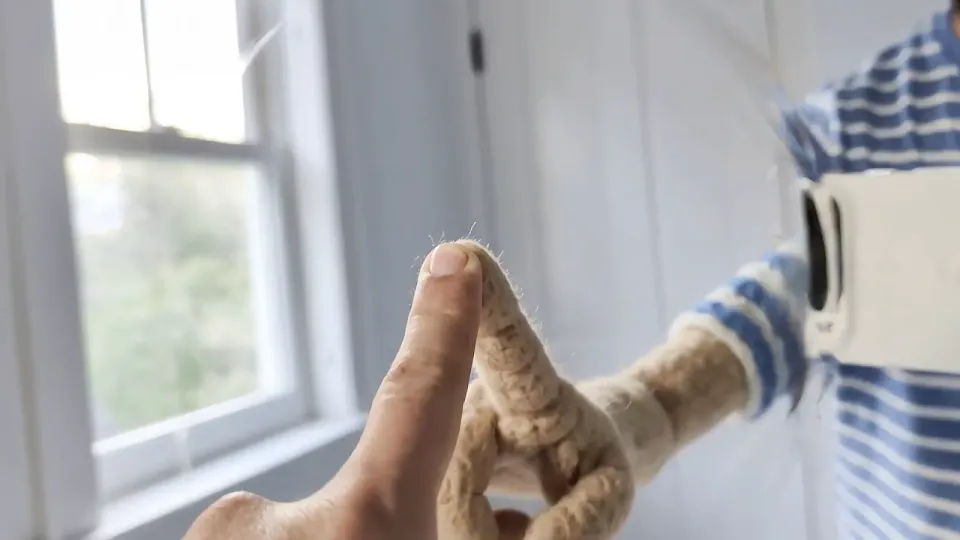
A new look for the same scene

A puppet transformation illustrates how a visual change can reshape an existing shot.

A different camera angle

Camera direction

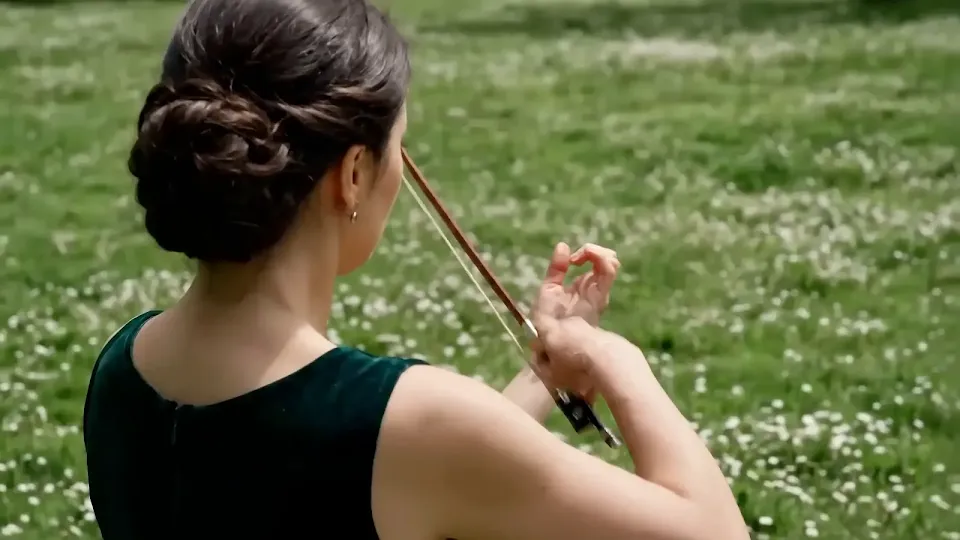
A different camera angle

A violinist scene demonstrates a change in viewpoint. Use it as inspiration for describing your own camera direction.

Words inside the scene

On-screen text

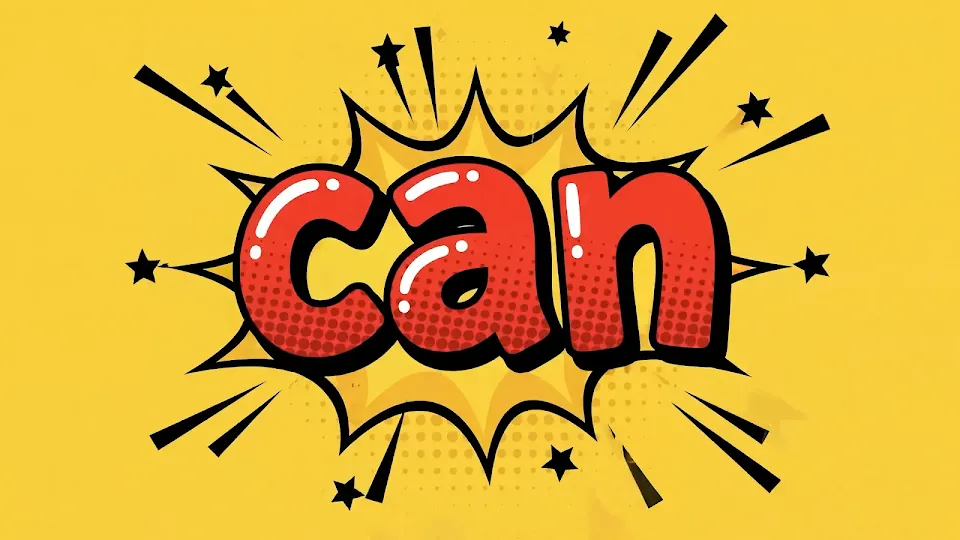
Words inside the scene

See an example of lettering in video. Always check generated text for spelling and legibility.

Three ways to start

Turn an idea or a reference into your next clip

Start with the material you already have. The generator keeps Gemini Omni Flash Preview selected as you move between text, image and reference modes.

A marble in motion

01 / Text to video

Describe the shot you want

Use text mode for a new scene. Name the subject, give it one clear action, then describe the setting and camera movement. A focused brief is easier to refine than a list of competing shots.

Open the generator
A different camera angle

02 / Image to video

Give your image a direction

Upload one JPEG or PNG in image mode. Tell the generator what should move and what should stay recognizable: a product turning, fabric moving in the breeze, or a camera approaching the subject. This mode uses one source image, without a separate end frame.

Open the generator
A new look for the same scene

03 / Reference to video

Guide a video with visual references

Add reference images, one video, or both in reference mode. Describe which details to keep and which to change. For an existing clip, request a specific change to the subject, style or viewpoint. Each submission creates a new generation; this page does not offer a conversational editing timeline.

Open the generator

What is Gemini Omni Flash?

Gemini Omni is Google's model family for media creation. The Gemini Omni AI workflow begins with text or visual material and produces video. On TryH3, this page uses Gemini Omni Flash Preview, with text, image and reference modes available from the same generator.

The settings below describe this page's current integration. Capabilities shown in Google's other products or newer model releases may differ.

How to generate a video with Gemini Omni

Gemini video generation starts with a focused brief. Choose the input that best matches your idea, then review the result before making another variation.

  1. 1

    Choose your starting point

    Select text mode for a written scene, image mode for one source picture, or reference mode for images and an optional video. Upload only the material needed for the shot.

  2. 2

    Describe the change and check the cost

    Write the action and camera direction. Choose 16:9 for landscape or 9:16 for portrait. Review the estimated credits shown in the generator; this model requires VIP access.

  3. 3

    Generate, review and download

    Sign in and generate your video. Review the completed result in the player, download it, or revise the prompt for another generation. Check important details before using the clip.

Settings supported on this page

These limits apply to Gemini Omni Flash Preview in this generator. The upload controls and credit estimate are the final check before submission.

SettingAvailable here
ModelGemini Omni Flash Preview
Output720p; 16:9 landscape or 9:16 portrait
Source image mode1 JPEG or PNG; up to 30 MB; no end frame
Reference imagesUp to 16 JPEG or PNG images; up to 30 MB each
Reference video1 MP4 or MOV; 1–24 seconds; up to 50 MB
PromptUp to 4,000 characters; required in text mode
Generated video lengthNo duration selector for this model; output length is determined by the provider
Audio referencesNot supported in this generator

A clearer prompt gives you a better starting point

Keep the scene readable: subject, action, setting and camera. For an edit, add what must stay the same. The following prompts are starting ideas, not verified outputs from the videos above.

Product reveal

A matte ceramic perfume bottle stands on a pale stone table. Morning light moves across its surface as the camera slowly pushes in. Keep the bottle shape and label unchanged. One continuous shot, no added text.

Animate a portrait

The person in the source image turns slightly toward the window and smiles. A light breeze moves their hair. Keep the face and clothing recognizable. Gentle handheld camera movement, natural daylight.

Change the setting

Use the reference video as the starting scene. Replace the background with a quiet sunlit garden while preserving the subject's movement and clothing. Keep the original framing and avoid adding people.

Gemini Omni questions, answered

Is Gemini Omni free to use here?

Gemini Omni Flash Preview requires VIP access on this site. Free account credits do not unlock this model. You can view the examples without generating a video; check Pricing for access options and the generator for the current credit estimate.

What is the Gemini Omni Flash price per video?

The generator displays an estimated credit cost for your selected settings and references before submission. Access and credits are managed by your account on this site. A Google AI subscription does not replace the site's VIP requirement.

What inputs does Gemini Omni accept here?

Text mode takes a written prompt. Image mode takes one source image. Reference mode accepts up to 16 images and one video. Images must be JPEG or PNG, up to 30 MB each; the video must be MP4 or MOV, up to 50 MB and 1–24 seconds long. Audio references are not supported here.

Can I edit an existing video?

Yes. Add one video in reference mode and describe the change you want. You can also include image references. Each submission generates a new result; there is no timeline editor or automatic memory of earlier edits on this page.

Can I generate 1080p or 4K video?

This integration currently outputs 720p in 16:9 or 9:16. The page uses Gemini Omni Flash Preview. Higher resolutions or features advertised for other Gemini Omni versions are not selectable here.

How long are Gemini Omni videos?

This generator does not expose an output duration setting for Gemini Omni Flash Preview. The provider determines the generated length. The 1–24 second limit shown for a reference video describes the uploaded input, not the output duration.

Do I need a Gemini Omni API key?

No. You use the browser generator with your account, VIP access and credits. The site handles the model connection. This page is a video creation tool, not a developer API console.

What can I learn from the video examples?

The examples illustrate creative possibilities. Your result depends on the input, prompt and model version available here.

Start your next Gemini Omni video

Choose an input, describe one clear shot, and check your credits. Your first draft begins in the generator above.