ChatGPT Image 2.5

Create an image from text or refine a photo with Flare or Sunburst.

Model
Browse prompts
0/2500
Aspect ratio
Resolution

Credits required: 4

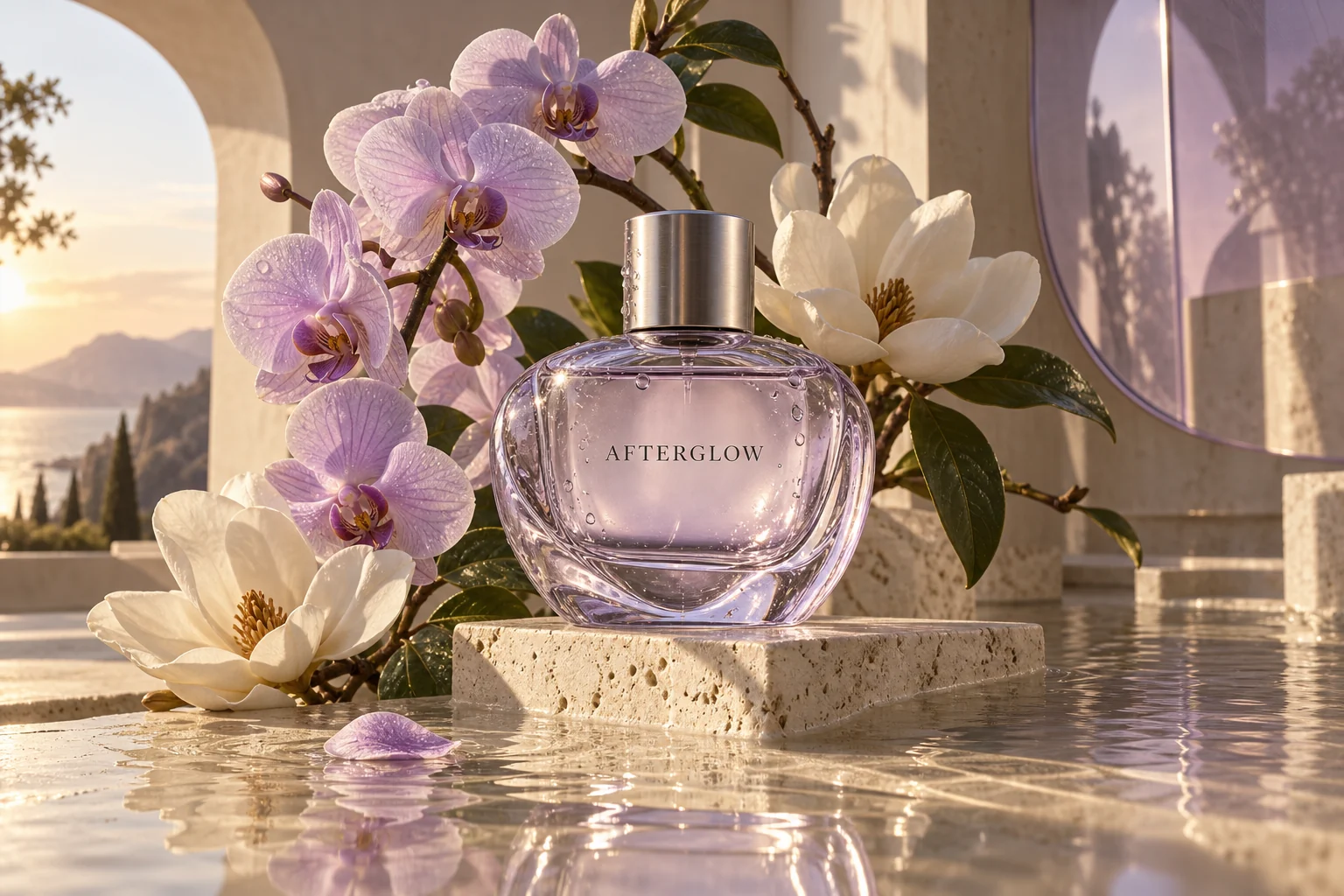
Lavender glass perfume bottle labeled AFTERGLOW, surrounded by orchids and magnolias in golden-hour light.

AI-generated concept illustration

A botanical product campaign

Created with Codex Image Gen for creative inspiration; not a verified GPT Image 2.5 result.

Start with a clear visual brief

Describe the subject, setting, composition and lighting. For an edit, name what should change and what should stay.

Botanical product photography

Create a premium product photograph of a transparent lavender glass perfume bottle labeled "AFTERGLOW" on a travertine pedestal. Arrange lilac orchids and white magnolias around it in a warm ivory architectural alcove. Use golden-hour side lighting, realistic glass refraction, delicate condensation droplets and subtle reflections in shallow water. Keep the label legible and the bottle in crisp focus.

A structured poster

Design a portrait poster for a neighborhood plant market. Use the headline "PLANT MARKET", a clear space for the date, botanical illustrations and a simple two-color palette. Keep the reading order clear and the lettering easy to check.

The model, explained

What can ChatGPT Image 2.5 help you make?

ChatGPT Images 2.5 is OpenAI’s image-generation release for creating visuals and editing existing pictures. Its announcement describes improvements to lighting, texture, subject preservation and focused edits. Here, you can work with the two GPT Image 2.5 variants through a prompt-and-reference workflow.

Keep the subject recognizable

Use a reference photo when the person or product needs to remain recognizable as you change the setting, composition or style. Review the result for details that must stay exact.

Change one part of an image

Describe a specific background, product or lettering change, and state which surrounding details to preserve. The release focuses on following these targeted editing instructions more reliably.

Build a coherent visual layout

Give posters, presentation visuals and interface concepts a clear hierarchy. The system card reports improved infographic accuracy and layout; text and factual details still need a final check.

GPT Image 2.5 Flare or Sunburst?

Both variants generate and edit images. Choose according to the kind of iteration your project needs.

Everyday generation

Flare

The default choice for social visuals, early product concepts and quick creative iterations. OpenAI positions Flare around faster generation with the new model family’s image and editing improvements.

Precision editing

Sunburst

Designed for creative work where small changes matter, including polished product imagery and campaign assets. Its emphasis on editing precision can mean a longer generation time.

How to use the ChatGPT image generation tool

  1. 1

    Write a brief or upload references

    Use From a prompt to create a new image. Choose Edit a photo to upload PNG, JPEG or WebP references, then describe the change you want. You can use up to 16 reference images.

  2. 2

    Choose a model and output size

    Select Flare or Sunburst, an aspect ratio and a 1K, 2K or 4K resolution tier. This workspace uses medium quality and generates one image at a time. Check the credit cost before starting.

  3. 3

    Generate, inspect and download

    Start generation, follow the task status, and inspect the result for text, subject details and layout. Open or download the image from the result card; find previous work in History or Creations.

Choose an aspect ratio for the finished asset

A resolution tier is a size preset, not a promise that every edge is 4,096 pixels. The actual dimensions depend on the aspect ratio. The examples below follow the provider’s size table.

Aspect ratio1K2K4K
1:11024 × 10242048 × 20482880 × 2880
16:91536 × 8642048 × 11523840 × 2160
9:16864 × 15361152 × 20482160 × 3840
3:21536 × 10242048 × 13603520 × 2336

Larger outputs above 2560 × 1440 are experimental in the model documentation. Use a smaller tier for initial iterations and check the downloaded image before using it in a final layout.

GPT Image 2.5 release date

OpenAI announced ChatGPT Images 2.5 on September 8, 2026, alongside the Flare and Sunburst API models. If you arrived searching “what is the new ChatGPT image model coming out?”, this is the released image family described in that announcement.

ChatGPT’s Sketch, templates and image comments belong to its own interface. This page provides text-to-image generation and reference-photo editing. A ChatGPT subscription and this site’s credits are separate.

What to check before using an image

The image-generation guide still lists limitations in text clarity, exact placement, recurring characters and brand consistency. Keep instructions specific, check all visible wording, and compare the result with your reference. Better editing consistency does not guarantee an unchanged logo or a perfect layout.

ChatGPT Image 2.5 questions

Are GPT Image 2.5 and ChatGPT Images 2.5 the same thing?
ChatGPT Images 2.5 names the image experience announced for ChatGPT. GPT Image 2.5 Flare and Sunburst are the two models available through the API. This tool uses those models for image generation and reference-based editing.
When was GPT Image 2.5 released?
The announcement and rollout were on September 8, 2026. The release introduced ChatGPT Images 2.5 together with GPT Image 2.5 Flare and Sunburst for developers.
What does “ChatGPT 2.5” refer to here?
On this page, it refers to the image model family. Use the full name ChatGPT Images 2.5 or GPT Image 2.5 when comparing image tools, so the image release is not confused with a general chat model.
Can I edit photos with GPT Image 2.5?
Yes. Choose Edit a photo, upload your reference images and describe what to change and preserve. The tool accepts up to 16 references. Each generation is a new request; to refine a result again, download it and upload it as a new reference.
Which quality settings are available here?
This workspace uses medium quality for both Flare and Sunburst, with 1K, 2K and 4K resolution presets. The underlying models also document low, high, xhigh and max, but those settings are not offered in this workspace.
Do I need credits or a ChatGPT subscription?
You need an account on this site, a purchased plan or credit pack to unlock VIP models, and enough credits for the selected resolution. You do not connect a ChatGPT subscription. The generation button shows the credit charge; failed tasks return their reserved credits.
Where can I verify GPT Image 2.5 news and comparisons?
Start with the OpenAI announcement and image-generation guide linked here for model names, capabilities and limitations. Community posts can show individual results, but they do not establish release dates or guarantee the same outcome for your prompt.
Create with GPT Image 2.5