Your home. A little Christmas make-believe.
Santa caught on camera
Santa caught on camera turns a photo of your empty room or porch into a fictional Christmas video: Santa leaves a gift, visits the fireplace or sneaks a cookie.
10 or 15 seconds · From 17 credits · Sign-in required · Subscription optional
Make your Santa visit
1. Add a photo
Empty room, clear floor space. JPG, PNG or WebP · Up to 10 MB · At least 300 px per side.
2. Choose Santa’s visit
Camera look
3. Model, length and quality
9:16 for a vertical video; 16:9 for landscape. Match your photo’s shape to reduce cropping.
Describe one visible detail. Keep the selected scene and camera position.
Equivalent at Studio monthly ($49.90 / 1,800 credits). You spend credits; this is not a separate cash price.
Add an empty room or porch photo to start.
Saved to your account with no automatic public posting. Anyone with the direct media link can open it.
Unpaid accounts receive a moving site watermark. A completed pack or plan purchase unlocks the clean download.
See the selected scene
12.26 seconds · color · audio track. Santa leaves a gift and notices the lens. The viewpoint moves closer as the scene develops.
What is Santa caught on camera?
Santa caught on camera is a Christmas make-believe effect: Santa Claus appears to visit a home in footage styled like a security camera. An AI Santa video generator starts with a room or doorstep photo and creates the movement. You do not need a real camera recording or a photo of your child.
There is no single required original clip, song or dance. The idea spans staged home videos, Santa-overlay apps and AI-generated visits. Here, one photo supplies the opening frame and the model creates a new 10 or 15-second MP4. The scene is fictional; it is not evidence of an actual visit or a live camera feed.
| Scene | Start with | What Santa does |
|---|---|---|
| Tree gift | Your tree with clear floor space and a visible entrance. | Walks in, leaves one present and makes a gentle shush gesture. |
| Fireplace visit | A fireplace or a clear room entrance. | Pauses by the hearth, brushes his sleeve and puts a gift safely on the floor. |
| Cookie break | A table with a visible plate of cookies. | Takes a small bite and gives the camera a friendly wave. |
| Doorstep delivery | A porch photo looking toward the walkway. | Approaches, places a parcel beside the door and steps away. |
Catch Santa on camera: four short visits
Compare the opening frame with the moving clip. Watch the walls, furniture and Santa’s hands as well as the action. These are scene examples; camera position, lighting, sound and room details can change. Your selected settings control your new video.
A frame from the example clip, not a separately supplied input photo. Compare your own uploaded photo with your result before sharing.
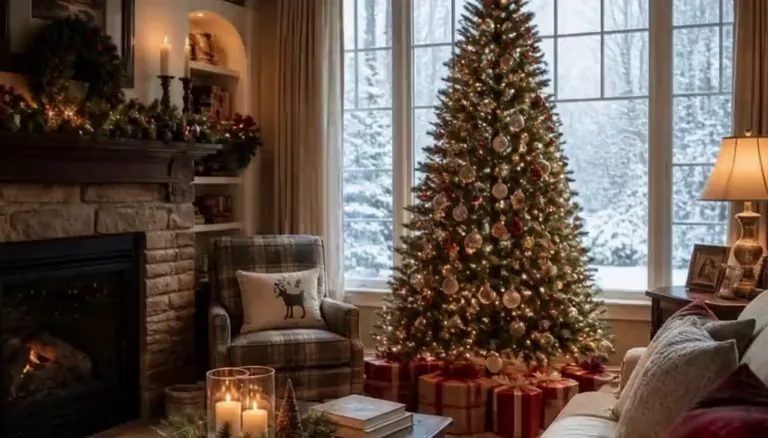
A gift beside the tree
12.26 seconds · color · audio track. Santa leaves a gift and notices the lens. The viewpoint moves closer as the scene develops.
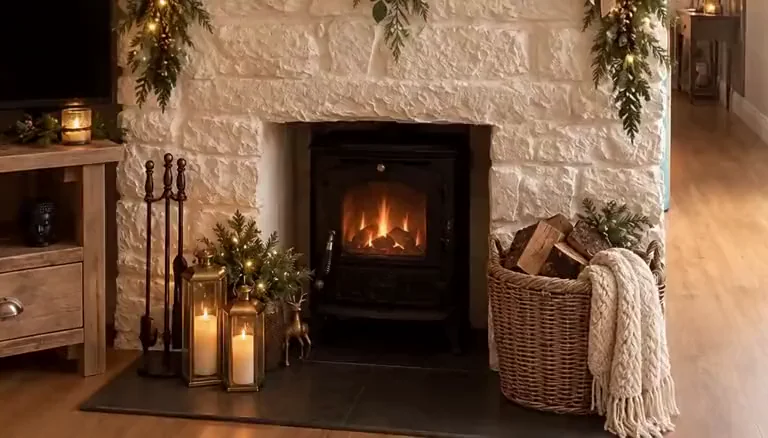
A visit by the fireplace
12.26 seconds · night-vision effect · audio track. Santa pauses at the hearth. The room and framing shift after the opening image.
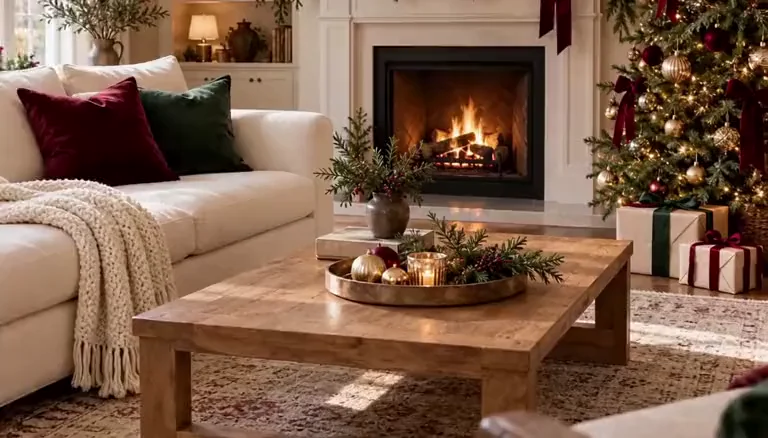
One cookie before Christmas morning
12.26 seconds · color · audio track. Santa sits at the table, has a cookie and waves. Check the cup and hand contact as he moves.
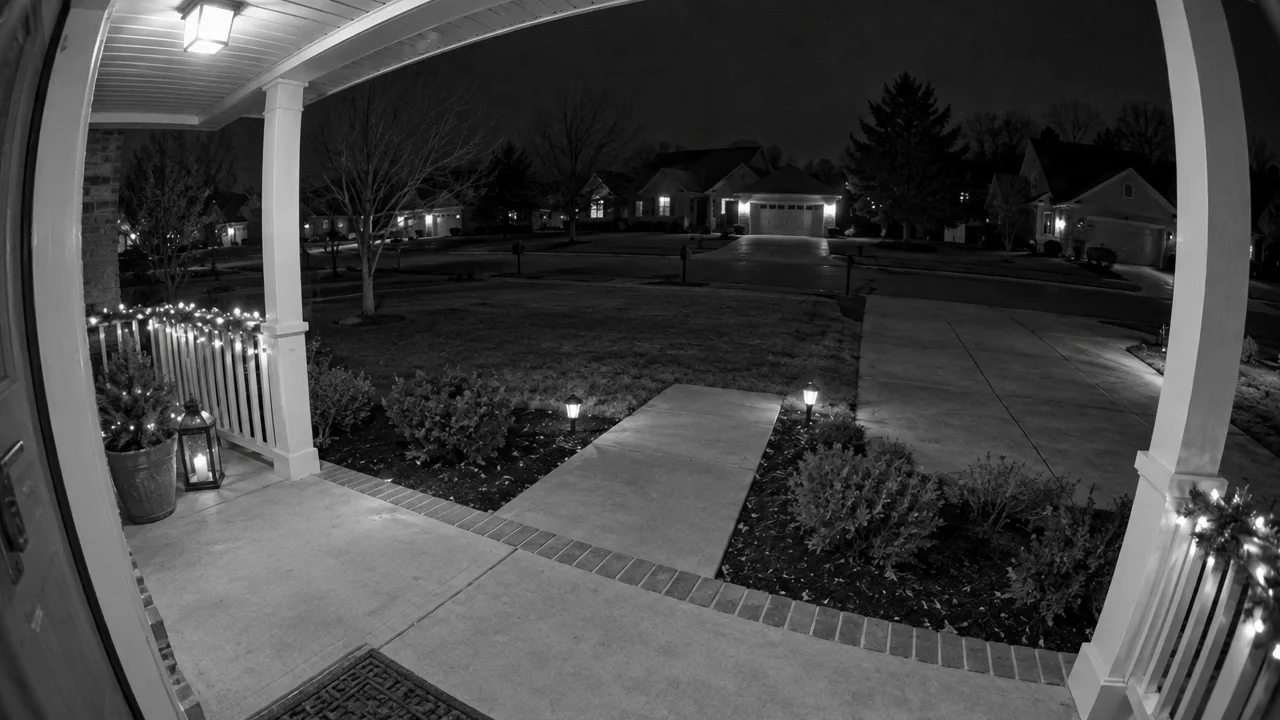
A parcel at the front door
10 seconds · monochrome porch view · audio track. Santa approaches the door with a wrapped gift. The clip includes a greeting; this tool requests no speech.
How to make Santa caught on security camera
- 01
Photograph the empty scene
Upload one JPG, PNG or WebP up to 10 MB, at least 300 pixels on both sides. Stand in a high corner for a room view, or use a porch screenshot looking outward. Keep people, addresses and family portraits out of frame.
- 02
Give Santa one small job
Choose a tree gift, fireplace visit, cookie break or doorstep delivery. Select night vision or color, 10 or 15 seconds, the output shape and model quality. Match the photo to the action; the tool does not need a written prompt.
- 03
Check the price, then the result
Sign in and confirm the credits before generating. Progress and the finished MP4 are saved in Creations. Compare the room with your uploaded photo, check Santa’s face and hands, then download. New attempts at completed videos cost credits again.
Keep your room recognizable
A familiar sofa, tree and doorway make the scene work. The prompt locks the camera and asks the model to keep them in place, but that is a request, not a guarantee. For your first attempt, use one short action and the same aspect ratio as the photo.
| What you notice | What to change before another attempt |
|---|---|
| Furniture or decorations move | Use a wide, sharp photo with visible floor and wall edges. Choose 10 seconds and keep the scene note simple. Avoid asking for a new room, a camera sweep or several actions; the model can redraw details even with a fixed-camera prompt. |
| The lighting changes too much | Color keeps the starting photo’s lighting. Night vision asks for a monochrome camera effect, so brightness and colors can change. For a nighttime scene, photograph it after dark with enough light to show the furniture. |
| Santa’s face, beard or hands drift | Leave clear walking space and avoid tiny, cluttered action areas. A gift on the floor is simpler than a close-up hand touching a cup. Try the shorter clip first; a higher resolution adds pixels but does not guarantee identity or correct fingers. |
| There is no fireplace or cookie plate | Choose Tree gift or Doorstep delivery for an apartment. The fireplace preset can use the visible entrance instead. Cookie break needs a table; if no cookies are visible, the prompt asks Santa to set one down rather than invent a whole meal. |
A 16:9 room photo suits a wide security view. Use a vertical photo for 9:16; changing shape can crop or invent edges. Remove visible camera logos and private details from your own screenshot before uploading.
AI Santa video generator prices, free credits and watermarks
All four scenes, both camera looks and optional ambience use the same rates. Default: Mini, 10 seconds, 720p, for 36 credits. The lowest setting is Mini, 10 seconds, 480p, for 17 credits. Prices below cover every available combination.
| Model / resolution | 10 seconds | 15 seconds |
|---|---|---|
| Seedance 2.0 Mini · 480p | 17 credits · ≈ $0.47 | 25 credits · ≈ $0.69 |
| Seedance 2.0 Mini · 720p | 36 credits · ≈ $1.00 | 53 credits · ≈ $1.47 |
| Seedance 2.0 Pro · 480p | 60 credits · ≈ $1.66 | 90 credits · ≈ $2.50 |
| Seedance 2.0 Pro · 720p | 129 credits · ≈ $3.58 | 193 credits · ≈ $5.35 |
| Seedance 2.0 Pro · 1080p | 320 credits · ≈ $8.87 | 480 credits · ≈ $13.31 |
USD figures are credit-value equivalents using Studio monthly at $49.90 for 1,800 credits, not separate cash purchases. Other plans have a different price per credit. The table covers every supported model, length and resolution.
| Access or action | What it costs / what you receive |
|---|---|
| Free complete videos | 0 from the current signup gift. Eligible new accounts can receive up to 5 welcome credits, valid for 7 days; one video needs at least 17. Browsing the examples is free. There is no free generated preview or daily free Santa render. |
| One-time Trial pack | $5 buys 24 credits without a subscription: enough for one Mini 10-second 480p video, leaving 7 credits. It does not cover the 36-credit default or any 15-second setting. Check the credit total before buying. |
| Accounts without a completed payment | Generated videos carry the moving site watermark when the account has no qualifying completed purchase. Welcome and gift credits do not remove it. |
| Paid downloads | A completed payment unlocks clean downloads for new results. Existing watermarked results can be unlocked when their clean original is retained. Downloading has no additional credit charge. |
| Failed generation | Generation credits are returned when the task fails. An upload or validation error before generation does not start a billed video. |
| Retrying a completed video | A finished clip with a changed room or imperfect Santa still uses its credits. Another generation is a new paid attempt. Two default attempts cost 72 credits, about $2.00 at the Studio monthly rate. |
Santa caught on Ring or Blink camera: the look, not a connection
A screenshot from your own camera can be the starting photo, but this tool does not connect to Ring, Blink or a live security system. Night vision requests monochrome sensor-like footage; Color keeps the photo’s lighting. No camera-brand logo, branded interface or exact timestamp is generated. Add an accurate timestamp yourself in a video editor if you want one.
Sound is off by default. Optional ambience requests quiet footsteps and room or porch sounds, without music, dialogue or a child’s name. It does not copy any example’s soundtrack. Keep the visit gentle and review it yourself before showing a young child.
The tool builds the scene prompt from your choices. A short note can name one visible detail, such as “leave the gift beside the blue chair.” It cannot reliably add a personalized spoken message, reproduce a specific recording or change the length after generation.
Santa caught on camera questions
Has Santa been caught on camera in real life?
A “real life Santa caught on camera” title is not evidence that a recording is authentic. Holiday clips can be staged performances, overlays or AI creations, including videos labeled 2023, 2024 or 2025. This tool deliberately creates a fictional visit from a photo. Treat it as a Christmas story and label it as AI-generated when sharing publicly.
Do I need a Ring or Blink camera, or a Santa caught on camera app?
No. Use a photo from your phone or a screenshot you own. For Santa caught on a doorbell camera, show the porch and walkway from the doorway. For an indoor security-camera look, use a high room corner. The generator runs in a browser; there is no app install or camera account connection.
Can a daytime photo become a nighttime Santa video?
Night vision can change the appearance to a dim monochrome effect, but shadows, windows and furniture may be redrawn. A clear photo taken after dark is a more direct starting point for a night scene. Choose Color if retaining the existing lighting matters more than the night-vision effect.
Can Santa visit an apartment without a fireplace?
Yes. Use Tree gift with a clear entrance, or Doorstep delivery with a porch or hallway view. The tree preset can place a gift by an existing chair if there is no tree. Avoid a close-up of a blank wall: Santa needs visible space to enter and move.
What if the AI changes my furniture or Santa’s face?
Compare the result with your uploaded photo. Use a wider, sharper scene, a single action and a 10-second clip to reduce complexity. The prompt requests stable geometry and one consistent Santa, but cannot guarantee either. Failed tasks refund their credits; a completed result with visual mistakes is still billed, and a new attempt costs the displayed amount.
Is Santa caught on camera free?
Watching the examples is free; generating your own video costs at least 17 credits. Up to 5 eligible signup credits do not cover a full video, and there is no free generated preview. A $5 Trial pack provides 24 credits, enough for one Mini 10-second 480p clip. The default 720p setting needs 36 credits. A subscription is optional.
Can Santa say my child’s name or use a Christmas song?
This page makes a short visual visit, not a personalized greeting. It requests no speech or music. You may turn on newly generated ambience, but timing and sounds vary. Add a voice recording or music you have permission to use afterward; a scene note is not a reliable speech control.
Should I upload a photo of my children or the inside of my house?
Use an empty room or porch. Crop out children, addresses, family photos, security codes and anything you would not want processed by an AI provider. Your upload is sent for generation and results are saved to your account without automatic public posting. Media is unlisted, not private: anyone holding a direct media link can open it. This page does not promise an automatic deletion deadline.
Leave a little room for Christmas magic.
Start with an empty room, pick one small action and check the credits before you generate.
Make a Santa video