
Describe a scene
Write the subject, action, setting, camera movement, and sound. Text-to-video works well as a starting point for a new shot or a short storyboard concept.
Open this workflowTurn a prompt or reference images into a 3–15 second video with audio. Choose 720p or 1080p, or bring an existing clip to the video editor.
Requires purchased model access and credits. Review the credit total before generating.
Happy Horse 1.0 in motion
Explore six Happy Horse 1.0 clips, from animated characters to painterly worlds and live-action fantasy. Press play to watch each sample with its audio.
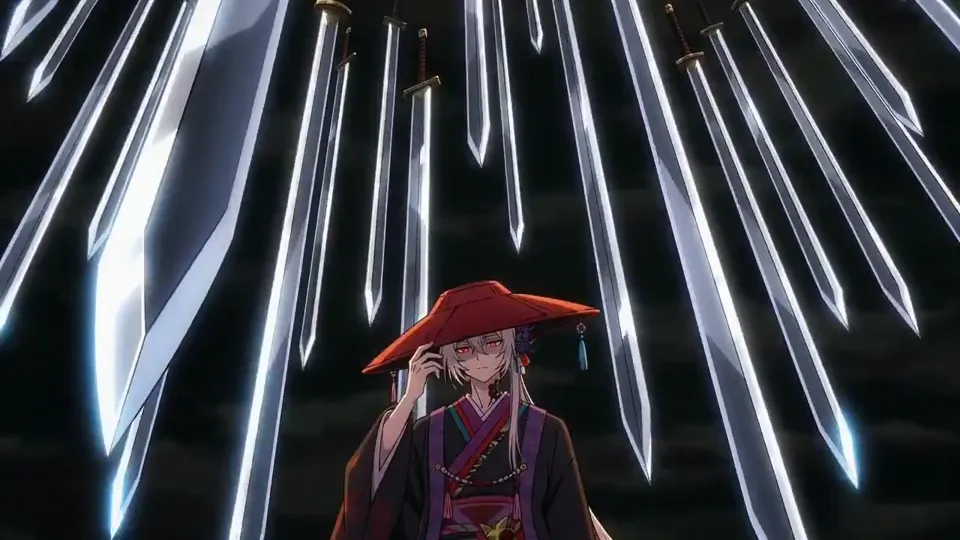
Animation15s sample
Watch close-ups and wider shots connect an anime-style sequence inside a geometric, reflective space.
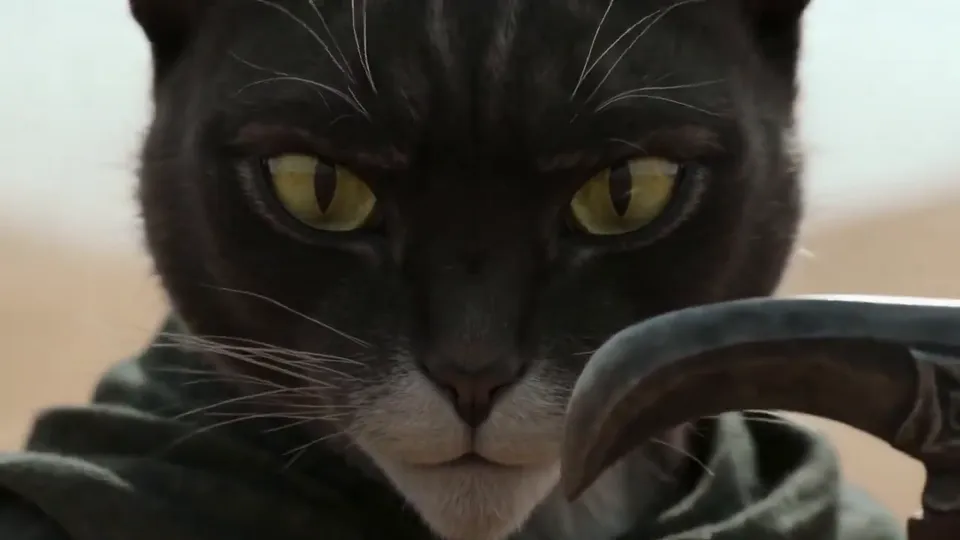
Character action12s sample
Cat-like characters race and clash across the sand, with moving fabric, dust, and changing camera angles.
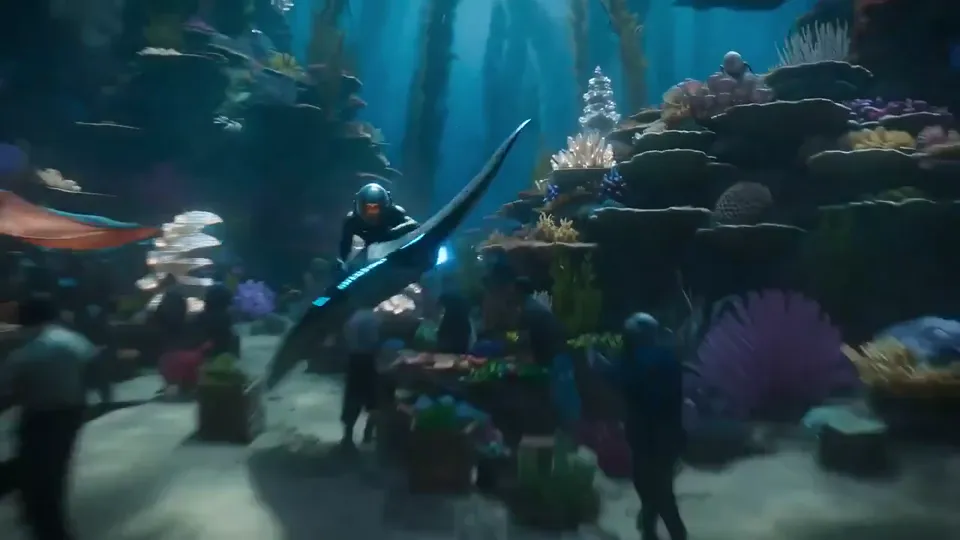
World building15s sample
A rider glides through a colorful reef as fish, bubbles, and shafts of light move through the scene.
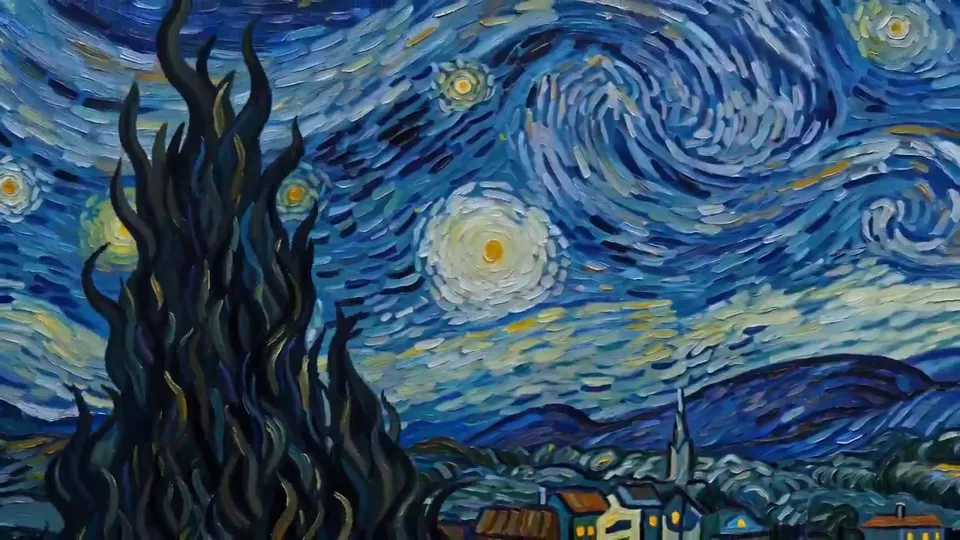
Painterly style15s sample
A painted night sky swirls above a village while textured strokes retain the look of an oil painting.
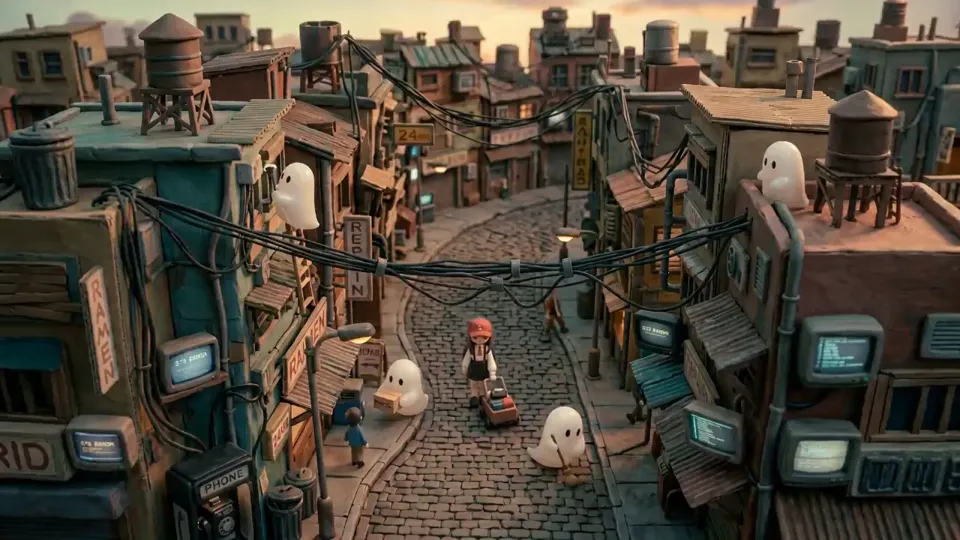
Miniature storytelling15s sample
A small street scene shifts between wide views and close-ups of tiny ghost characters and handcrafted-looking buildings.
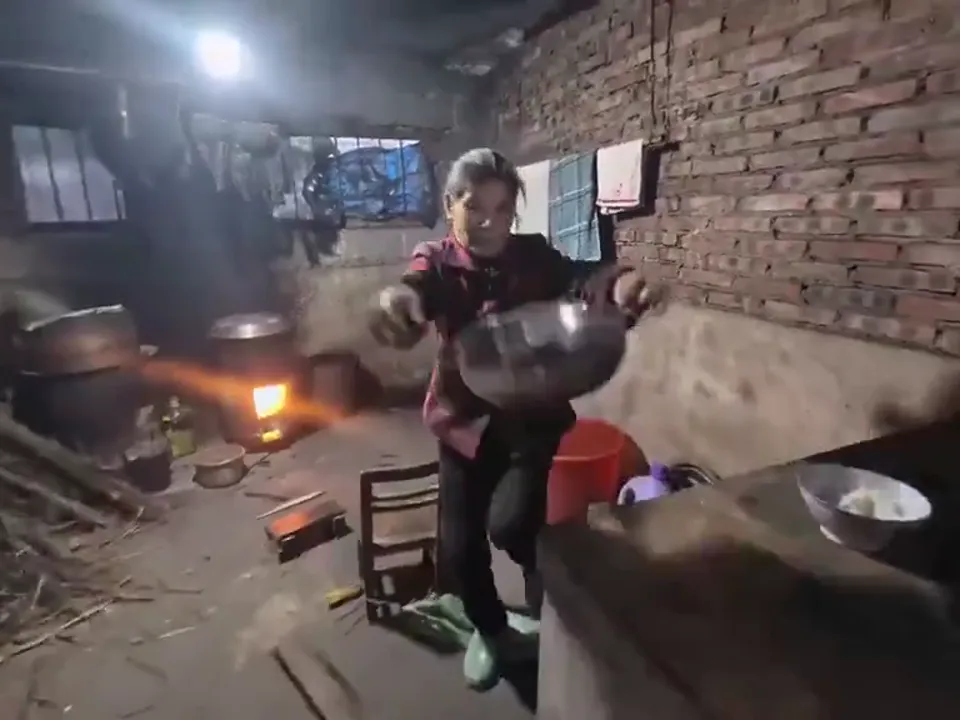
Live-action style15s sample
A rustic kitchen turns into a fast-moving fantasy sequence, combining an everyday setting with exaggerated effects.
Prompts and input settings are unavailable for these clips.
Happy Horse 1.0 is an AI video model from Alibaba for creating and editing short clips. Use it on TryH3 with a written scene, a starting image, multiple reference images, or a source video. You can prepare a shot in your browser without setting up an API or installing model files.
Start with the material you already have. Each input gives you a different way to guide the scene.
Write the subject, action, setting, camera movement, and sound. Text-to-video works well as a starting point for a new shot or a short storyboard concept.
Open this workflowUpload a first frame and describe what should move. The video follows the image’s aspect ratio. A motion prompt is optional; an end-frame image is not supported.
Open this workflowAdd 1–9 images to guide a character, product, setting, or visual style. Tell the model which details to use from each image, then choose your output ratio.
Open this workflowOpen Video Editing, upload one source video, and describe the change. Clips longer than 15 seconds use their first 15 seconds. This workflow edits a clip; it does not extend its ending.
Open this workflowSelect Text, Image, or Reference above. Add your prompt and any required images. For a source clip, follow the Video Editing link.
Choose 720p or 1080p and a duration from 3 to 15 seconds. Check the displayed credit total. Sign in with purchased model access and enough credits to submit.
Submit the job and follow its progress. Preview the completed video, then download it from your results. Review motion, details, and audio before using the clip.
These are the options available in this generator. Source video editing uses the clip’s aspect ratio and processes up to its first 15 seconds.
| Setting | Available here |
|---|---|
| Output resolution | 720p or 1080p; default 1080p |
| Generated clip length | 3–15 seconds, in 1-second steps; default 5 seconds |
| Text and reference aspect ratios | 16:9, 9:16, 1:1, 4:3, or 3:4; image and video inputs retain their source ratio |
| Image uploads | JPG, PNG, or WebP, up to 10 MB each; one first frame or 1–9 reference images |
| Image dimensions | Aspect ratio from 1:2.5 to 2.5:1; first frames need a short side of at least 300 pixels |
| Source video for editing | One MP4 or MOV, 3–60 seconds, up to 100 MB; more than 8 fps, a short side of at least 360 px and a long side of at least 480 px, with an aspect ratio from 1:8 to 8:1 |
| Prompt and audio | Up to 2,500 characters. Audio is generated with the video; editing uses automatic audio handling |
Text, first-frame, and image-reference generation use the same rate at a given duration and resolution. Audio is included. The table uses the same pricing policy as the generator.
| Clip length | 720p | 1080p |
|---|---|---|
| 3 seconds | 59 credits | 104 credits |
| 5 seconds | 98 credits | 173 credits |
| 10 seconds | 195 credits | 345 credits |
| 15 seconds | 293 credits | 518 credits |
Video editing is priced from the source clip’s measured length, rounded up to a whole second and capped at 15 seconds. For example, a 6.2-second clip is billed as 7 seconds; a 20-second clip is billed as 15 seconds. Source seconds are not charged again on top.
Check the final total in the generator before submitting. A confirmed failed generation returns its generation credits.
View plans and credit packsThese are written starting points, not sample outputs. Load a prompt, adapt it to your project, and upload your own image when the workflow requires one.
A matte ceramic coffee cup sits on a wooden table beside a rain-streaked window. Steam rises gently as the camera slowly pushes closer. Soft morning light, shallow depth of field. Quiet rain and room ambience, no music.
Use this promptAnimate the uploaded image with a slow camera push-in and subtle movement in the background. Keep the main subject’s appearance and position close to the first frame. Soft natural light and gentle ambient sound.
Use this promptUse the product from the first reference image and the setting from the second reference image. Place the product on a clean surface in that setting. A slow sideways camera move reveals its shape under soft light. Keep the product’s visible colors and proportions. Quiet room ambience.
Use this promptKeep each short clip focused on one main action. Describe camera movement separately from subject movement. For references, name the role of each uploaded image. Check small text, faces, and audio in the result and refine one instruction at a time.
Happy Horse 1.0 is an AI video model from Alibaba. On TryH3, it supports text-to-video, first-frame image-to-video, generation from 1–9 reference images, and source video editing with audio.
No. Happy Horse 1.0 requires purchased model access and enough credits for the selected settings. Welcome credits alone do not unlock this model. You can explore the page and prepare a prompt before purchasing.
Yes. Choose Image and upload a first frame; a motion prompt is optional. Choose Reference to guide a scene with 1–9 images and a required prompt. Use JPG, PNG, or WebP images up to 10 MB each. This model does not accept an end-frame image.
Yes. Open Video Editing with Happy Horse 1.0 selected and upload one 3–60 second MP4 or MOV, up to 100 MB. Describe the change you want. The output follows the source aspect ratio and uses at most its first 15 seconds. Video extension is not supported.
New videos can be 3–15 seconds long in 1-second steps, at 720p or 1080p. The default is 5 seconds at 1080p. Text and reference modes offer five aspect ratios; first-frame animation uses the image’s ratio.
TryH3 provides a hosted generation tool and is not the model developer’s official website. It does not provide model weights, inference code, or local installation packages. You can download your completed video from your results.
Yes. Audio generation is included in this model’s credit cost. Describe dialogue, ambience, or sound effects in your prompt. Video editing uses automatic audio handling; retaining the original soundtrack is not a selectable option here.
A 5-second video uses 98 credits at 720p or 173 credits at 1080p with the current pricing settings. Longer clips cost more. Editing uses the source duration, rounded up and capped at 15 seconds. Review the final quote before generating.
Choose an input, describe the motion, and review the credit total before you generate.
Back to the generator